Stage Locations
You can enter locations of a stage in two ways:
- By Address (the default)
- By GPS point (latitude/longitude)
Open a calendar item and go to the stage information page (the ‘i’ button) and add or edit the stage information.
Go to the ‘Locations’ tab
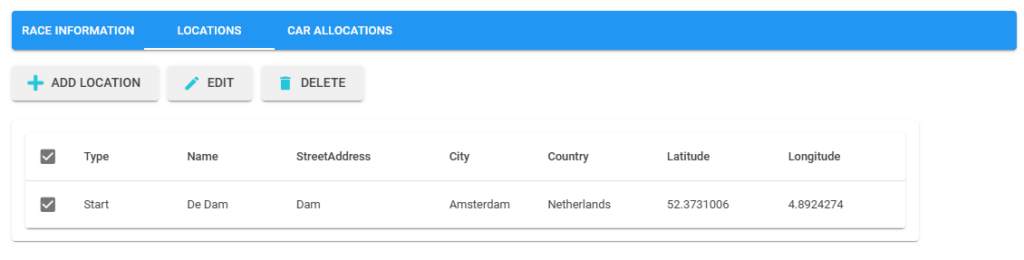
Here you can Add a location, Edit & Delete (one or more) locations.
Add location will bring you to the following window

First row is the option to input an address or a gps coordinate.
When you copy an address from the technical guide using the clipboard you can smart paste the copied address in the fields using the ‘Copy from clipboard’ button. The address will be formatted and a popup is shown in which you can accept the formatted result. This also applies if you copies gps coordinates, the order is always latitude first and then longitude.
The type is the address types you wish this address to be applied to (for instance the start and finish, multiple are possible).
When you have filled our the address or coordinates on press of the Ok button the system will validate the address (using Google) and retrieve the gps coordinates for the address or the closest address for the gps coordinates.
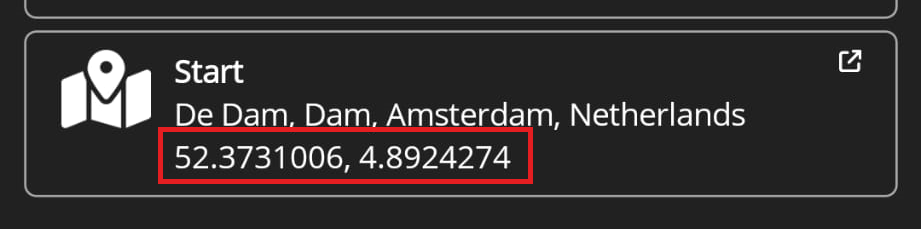
The appearance of a location in the app has changed so that the coordinates now also show. When coordinates are available the app will always use those and not the address since the coordinates are more accurate.